Macro Deck 3.0.0 Is Here
The first stable release of Macro Deck 3: widgets, built-in integrations, the Macro Deck Store, Companion apps for phones and tablets, and Macro Deck 2 migration.
Contents
Macro Deck 3.0.0 is out, and with it the first stable version of Macro Deck 3. The public beta that started in September is over, so whether you're coming from Macro Deck 2 or just heard about Macro Deck for the first time, this is the version to use. A lot of you tested the betas, sent logs and told me what didn't work, and you can see the results of that all over this release.
You can download Macro Deck 3.0.0 on the website or from the GitHub release. If you want to know how Macro Deck 3 came to be, I wrote that down in Macro Deck 3: A New Chapter. This post is about what you can actually do with it.
What Macro Deck is
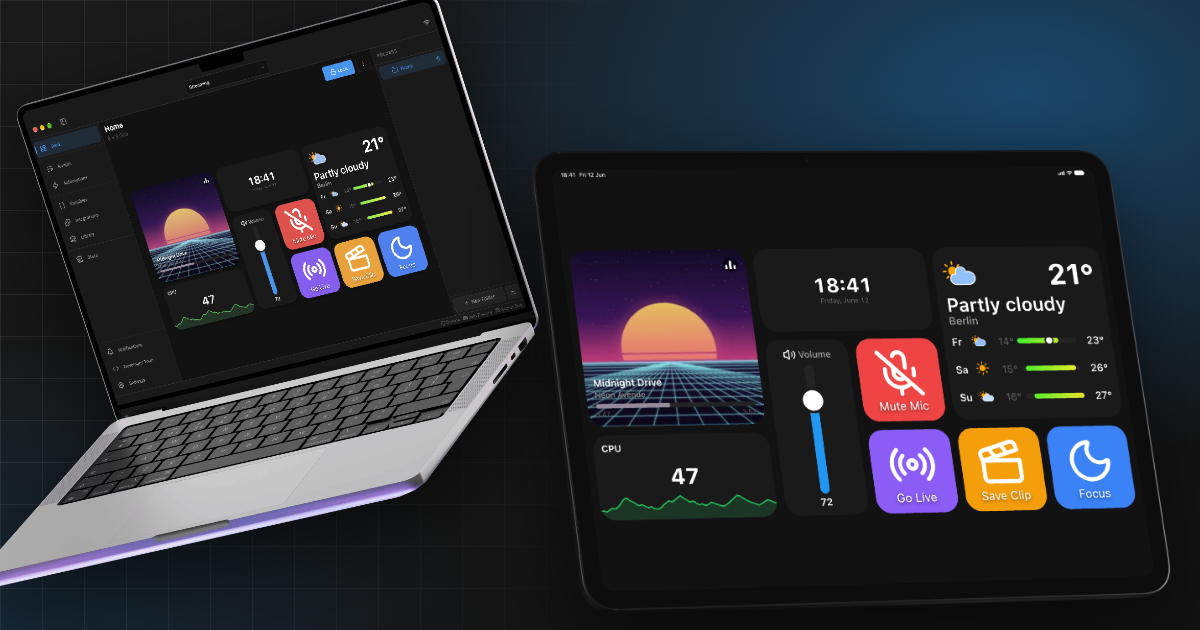
Macro Deck turns a phone, a tablet or anything else with a browser into a control surface for your computer. You place buttons and widgets on a grid, and a tap on the device does something on the computer: switch a scene in OBS, mute your microphone, start a playlist, open an application, or run a whole list of actions one after another. You build your decks in the desktop application and use them on your devices.
Macro Deck 3 runs on Windows, macOS and Linux. Windows gets an installer, Apple silicon Macs with macOS 11 or later get an app, and on Linux there is an APT repository as well as .deb, .rpm and AppImage packages. There are no builds for Intel Macs or for ARM versions of Windows and Linux. The compatibility page has the details.
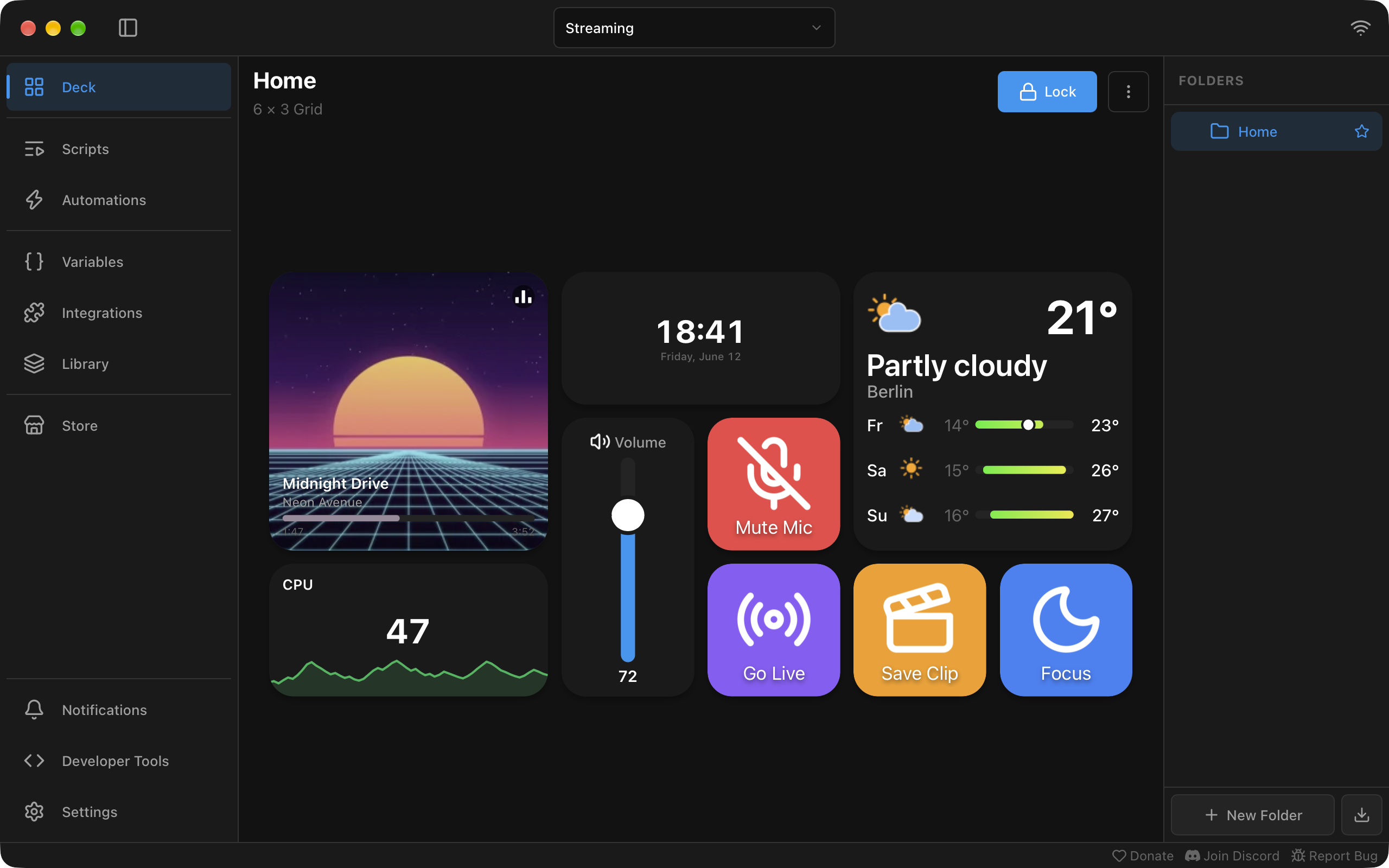
Everything is organised in profiles, such as Streaming, Work or Gaming, and each one has its own folders and widgets. Every connected device can open with its own profile, so the tablet on your desk can show your stream controls while your phone shows something else. A profile also sets the default grid size, the widget spacing and the corner radius, and you can turn widget shadows off. Under Settings > Appearance you pick a light, dark or system theme, an accent color and the font.
A deck is more than buttons now
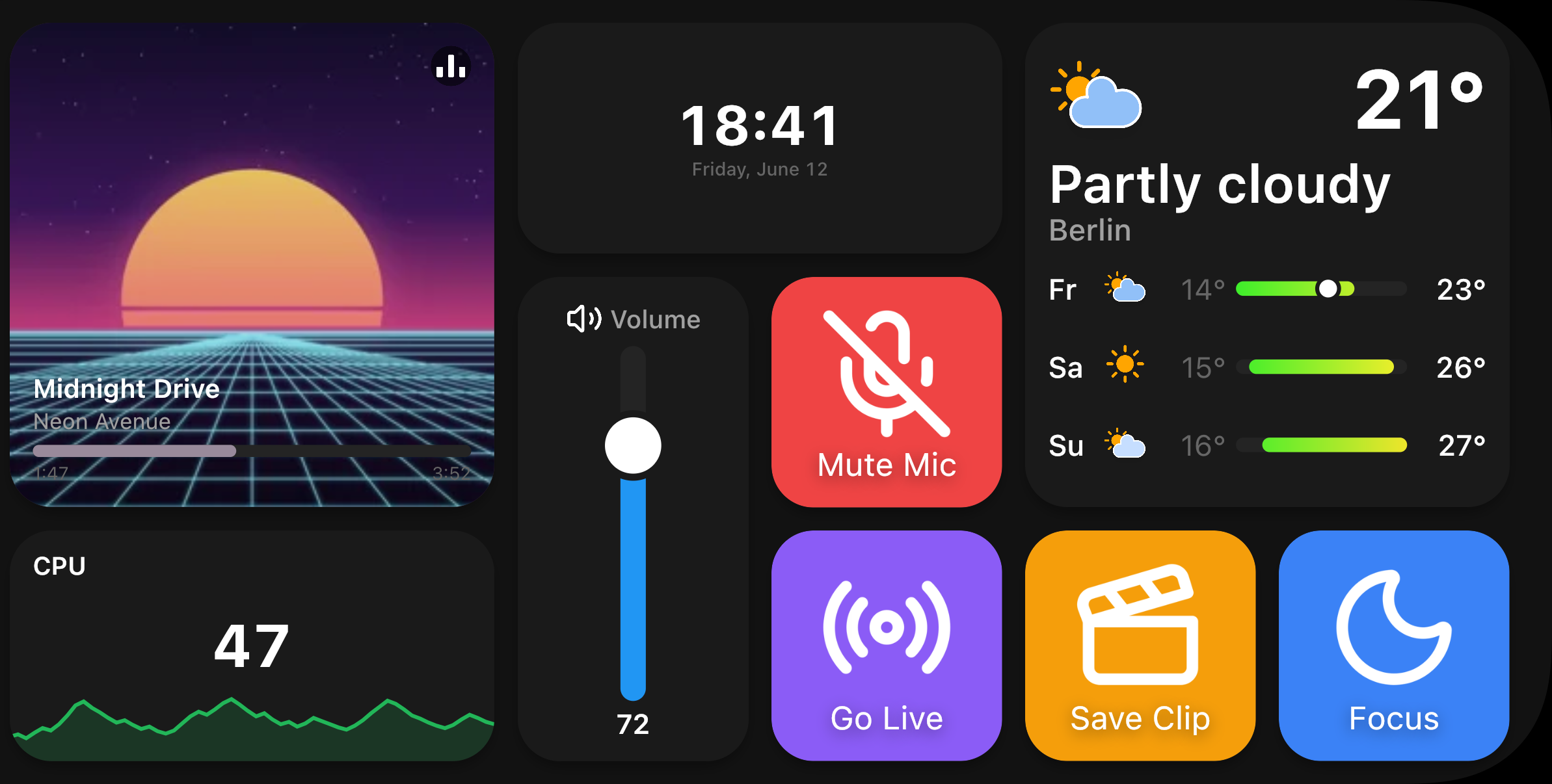
In Macro Deck 2, a deck was a grid of buttons. In Macro Deck 3, everything on the grid is a widget, and the Action Button is just one of them. It still does what you know, with an icon, a label and actions on Short Press, Long Press or Double Tap, but now it sits next to widgets that show live information and that you can drag.
Take a deck for streaming. A few Action Buttons go live and mute the microphone. Next to them, a Music Player widget shows what Spotify is playing, and a Clock and a Weather widget with a forecast for your city fill the corners. A vertical Slider controls the system volume, and that one is a good example of how Macro Deck 3 works: connect the slider to the variable system_volume_percent, and moving the slider changes the variable, which changes the volume.
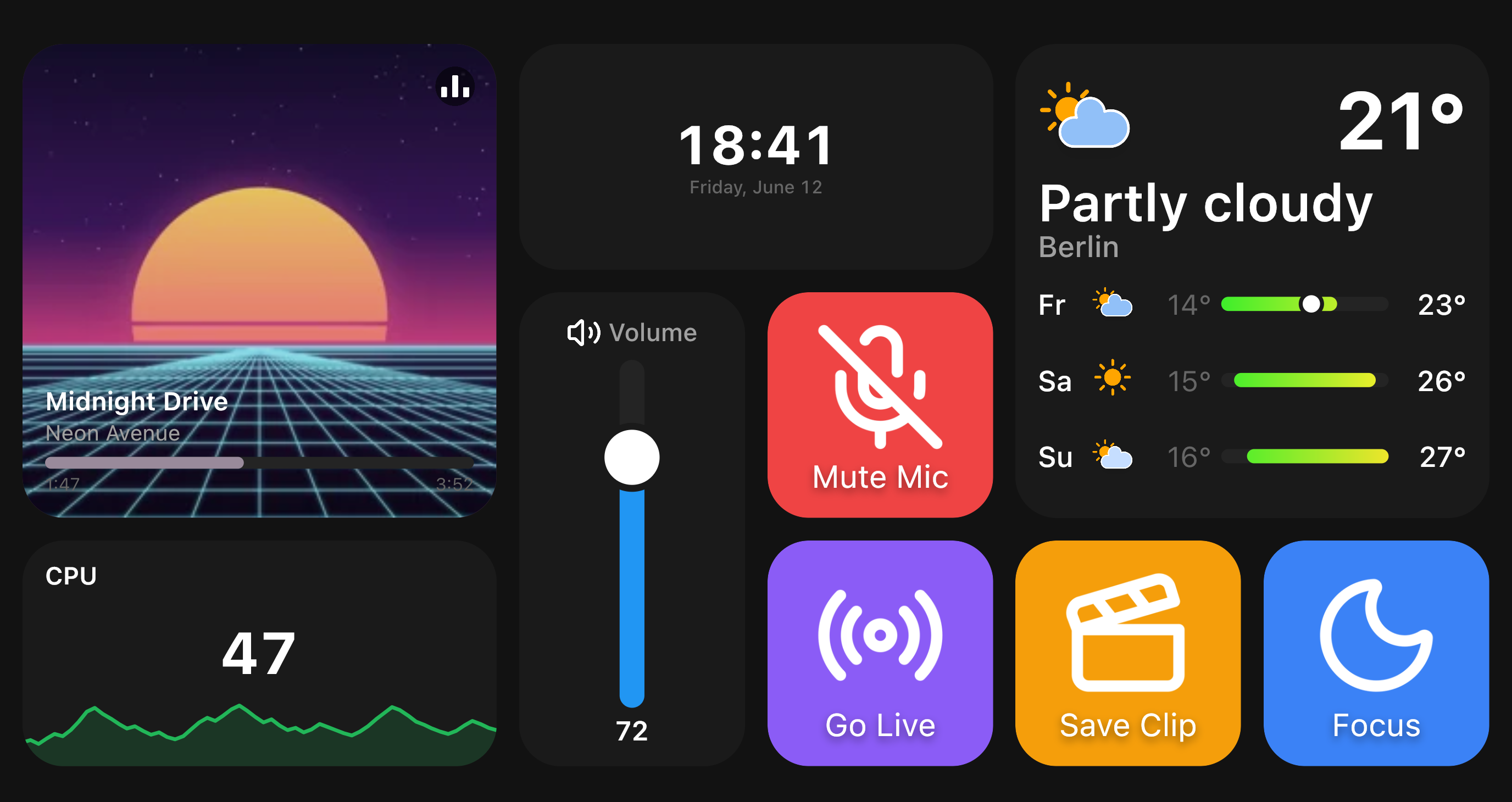
There is more where that came from: a History Graph for CPU load, Gauges, Countdown and Stopwatch, and a Calendar with your next events. Integrations bring their own widgets too, such as the Twitch chat or your Steam library. Those are built with Macro Deck UI, the same UI system every plugin uses. A plugin describes its widget once and Macro Deck renders it on every surface, which is why a plugin can now add a completely new kind of widget to your deck instead of only new actions for a button.
Integrations, actions, variables and events
The things Macro Deck talks to are called integrations, and a lot of them are built in: OBS Studio, Streamer.bot, Twitch, YouTube, Discord, Spotify, SinusBot, Voicemeeter, Home Assistant, Steam, Jellyfin and quite a few more. The System integration covers the computer itself, from volume and mute to launching applications, running commands and locking the computer. You turn on the ones you use under Integrations.
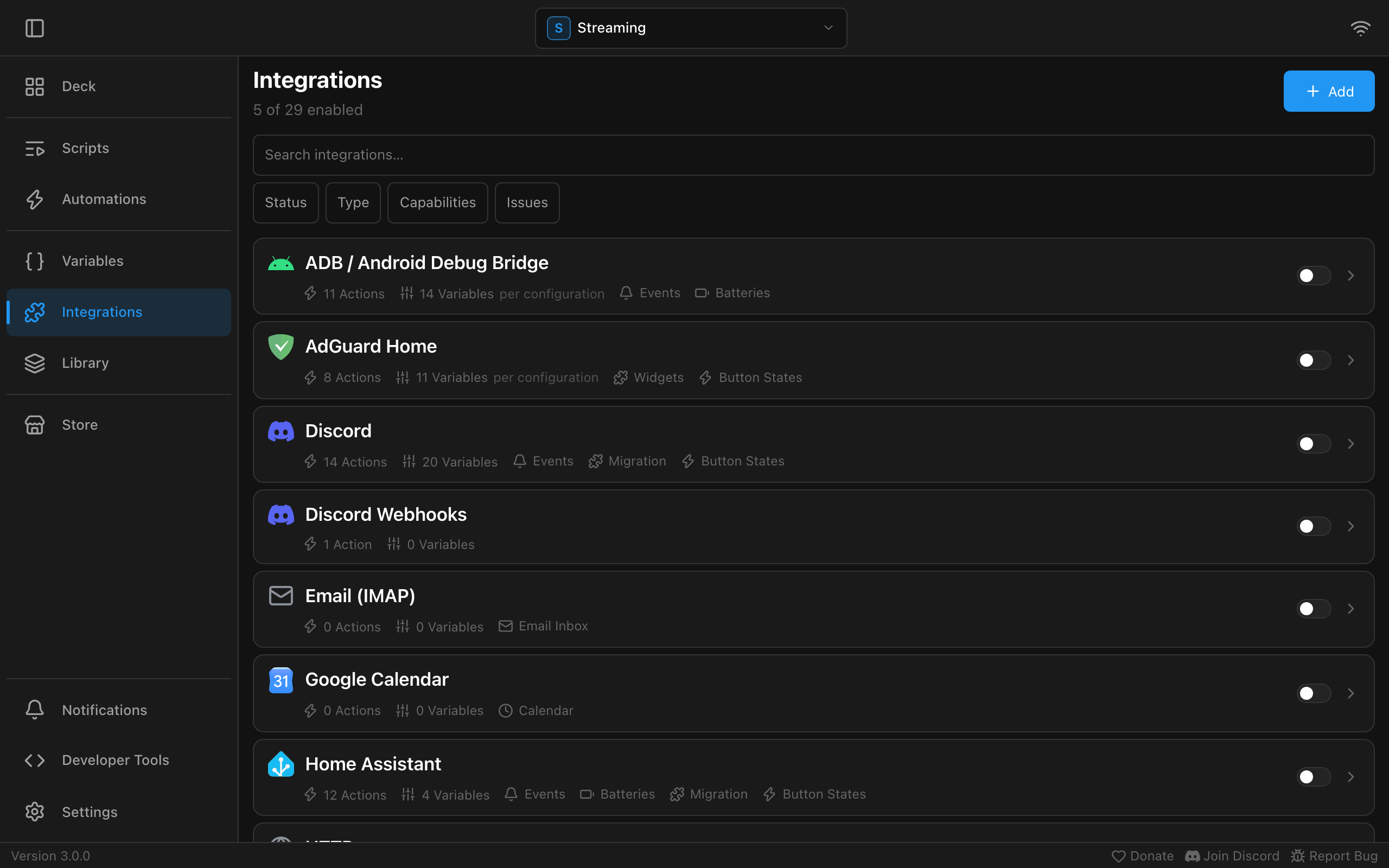
An integration brings actions that do something, like Set Scene in OBS, variables that tell you something, like the current scene or what's playing, and events that say something happened, like Streaming Started. Widgets put these together: a button can show a variable in its label ({{ vars.deaths }} makes a death counter), change its state when a variable changes, and run longer flows with If / Else, Switch, Repeat and Wait.
If you need the same list of actions in more than one place, make it a script, and any button can run it. Automations run actions on an event, without a button at all: when OBS starts streaming, an automation can switch your tablet to the streaming profile and start a playlist. The concepts page explains all of it with more examples.
The Macro Deck Store
What isn't built in is in the Macro Deck Store, which is now part of Macro Deck itself. Under Store you search plugins and icon packs or browse them by category, and Install installs them right there. The Installed tab shows what has an update. Macro Deck tells you about updates by default, and if you'd rather not think about them, turn on Update extensions automatically under Settings > Store.
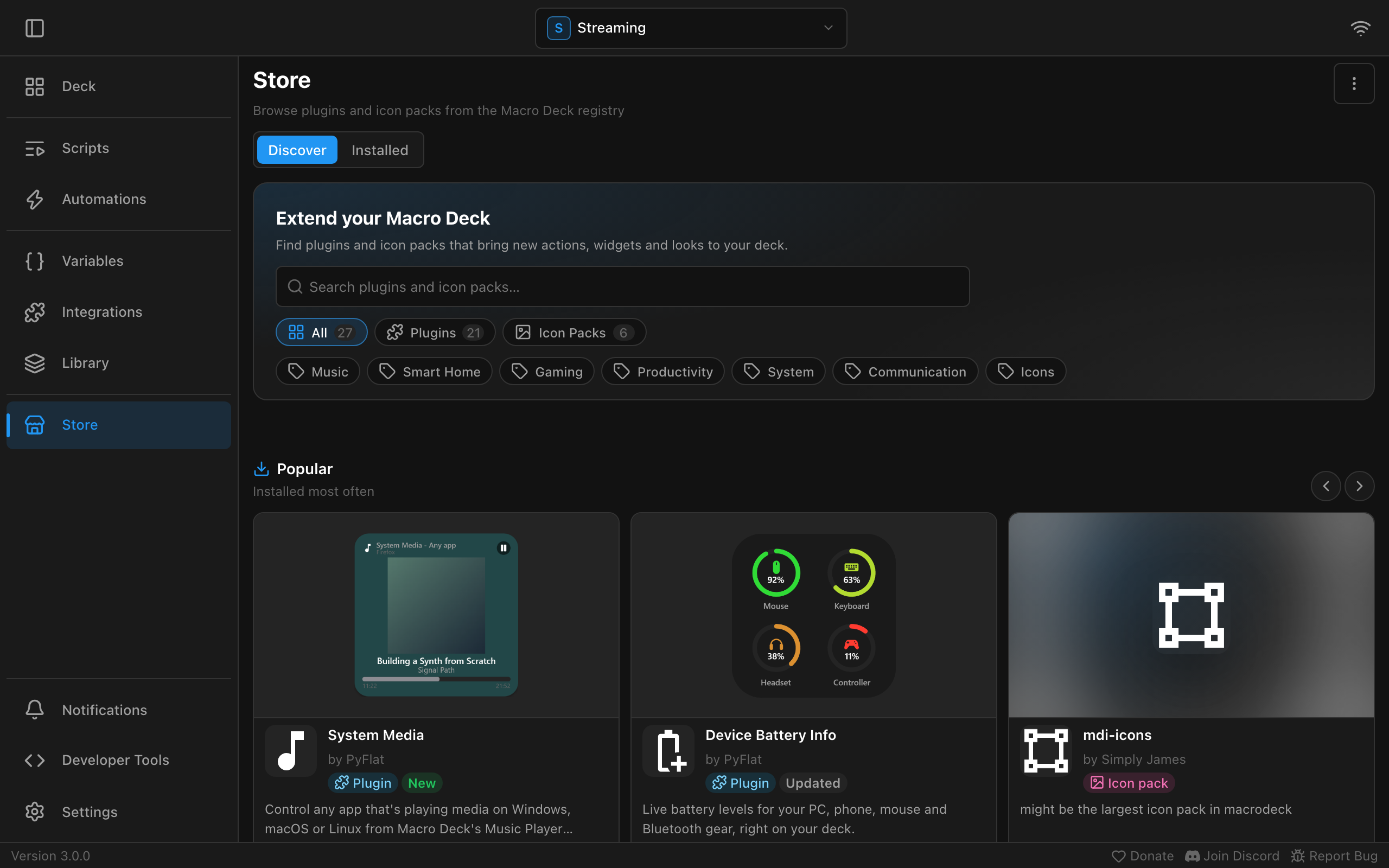
Everything in the Store is made by the community. Plugins have to be open source, and every version goes through a review and gets signed before it shows up there. The same Store is on the website at macro-deck.app/store, where Open in Macro Deck takes you straight to a plugin in the app on your computer.
If you build plugins, the Creator Portal is the other side of all this. You connect a public GitHub repository, publish a GitHub release and submit the build for review. Once it's approved it's in the Store, signed by the Store, so you never have to deal with a signing key. Plugins are written in C# with the new SDK and can provide anything from a single action to a complete integration with its own setup, widgets and folder views. The quickstart gets a first plugin running.
Macro Deck on your phone or tablet
The simplest way to use your deck is the web client. It opens in a browser on your network with nothing to install: open the network panel in Macro Deck, scan the QR code and enter the pairing code shown there.
The Companion app goes further. It's a native app for Android 6 or later and for iPhone and iPad with iOS 15 or later, on Google Play and in the App Store. It draws your deck natively, finds your computers on the network and keeps several of them open a swipe apart. It can also wake a computer with Wake-on-LAN, open a deck or run a script from an NFC tag, put your scripts on the home screen and connect over USB without USB debugging, which is still experimental. On iPhone and iPad it adds actions for Siri and Shortcuts, which I wrote about in Run Macro Deck scripts from Siri and iOS Shortcuts.
About the cost, briefly: Macro Deck is free and open source under the Apache License 2.0, and the web client is free as well. The Companion app is an optional paid add-on. Every device can try it for seven days, and after that a one-time purchase in Google Play or the App Store unlocks it. There is no subscription, and one license covers your phones and tablets on Android and iOS. The FAQ explains why it costs money and what the license covers.
Moving from Macro Deck 2
Macro Deck 3 can take over your Macro Deck 2 setup. On the first start it offers to migrate it, and you can also do that later under Settings > Migrate from another app. It brings your profiles, folders, buttons, icons and variables over. On Windows it finds the Macro Deck 2 data by itself, otherwise you choose the folder or a backup file. This is a best-effort migration: Macro Deck 3 works differently in a lot of places, so go through your deck afterwards. Macro Deck lists everything it couldn't carry over exactly.
Macro Deck 2 plugins don't run in Macro Deck 3, because plugins are built on a new SDK. For the plugins most people used, this matters less than it sounds. OBS, Twitch, Spotify, Discord, Streamer.bot, SinusBot, Home Assistant, Voicemeeter, SoundPad, Windows Utils and a few others are now covered by built-in integrations, and the migration translates their actions. An action it can't translate stays on its button as a placeholder with its original settings, so you can see what still needs setting up.
The Companion app works with Macro Deck 3 only. If you bought the Macro Deck 2 app for iPhone or iPad, you don't have to pay again; the license page tells you how to transfer that purchase.
What comes next
3.0.0 is a starting point. Since the last betas, the built-in integrations reach Macro Deck only through the plugin SDK, the same one everyone else uses, and the SDK gained what they needed along the way. So new integrations and widgets don't have to wait for a Macro Deck release. I have plenty of ideas for the next versions, but I'd rather show them when they're ready than promise them here.
To everyone who installed a beta, reported a bug, sent a log, built a plugin before the SDK was finished, or answered someone else's question on Discord: thank you. A lot of what's in 3.0.0 exists because one of you pointed at something and said it didn't work the way it should.
The installation guide helps with the first start, and the documentation is there when you want to go deeper. Every package and the full changelog are in the GitHub release. If something doesn't work, tell me on the Macro Deck Discord or in the issues on GitHub.