Run Macro Deck scripts from Siri and iOS Shortcuts
The Companion app adds Macro Deck actions to Apple's Shortcuts app. A few setups that work well, from Siri to Focus modes, and the limits to know.
Contents
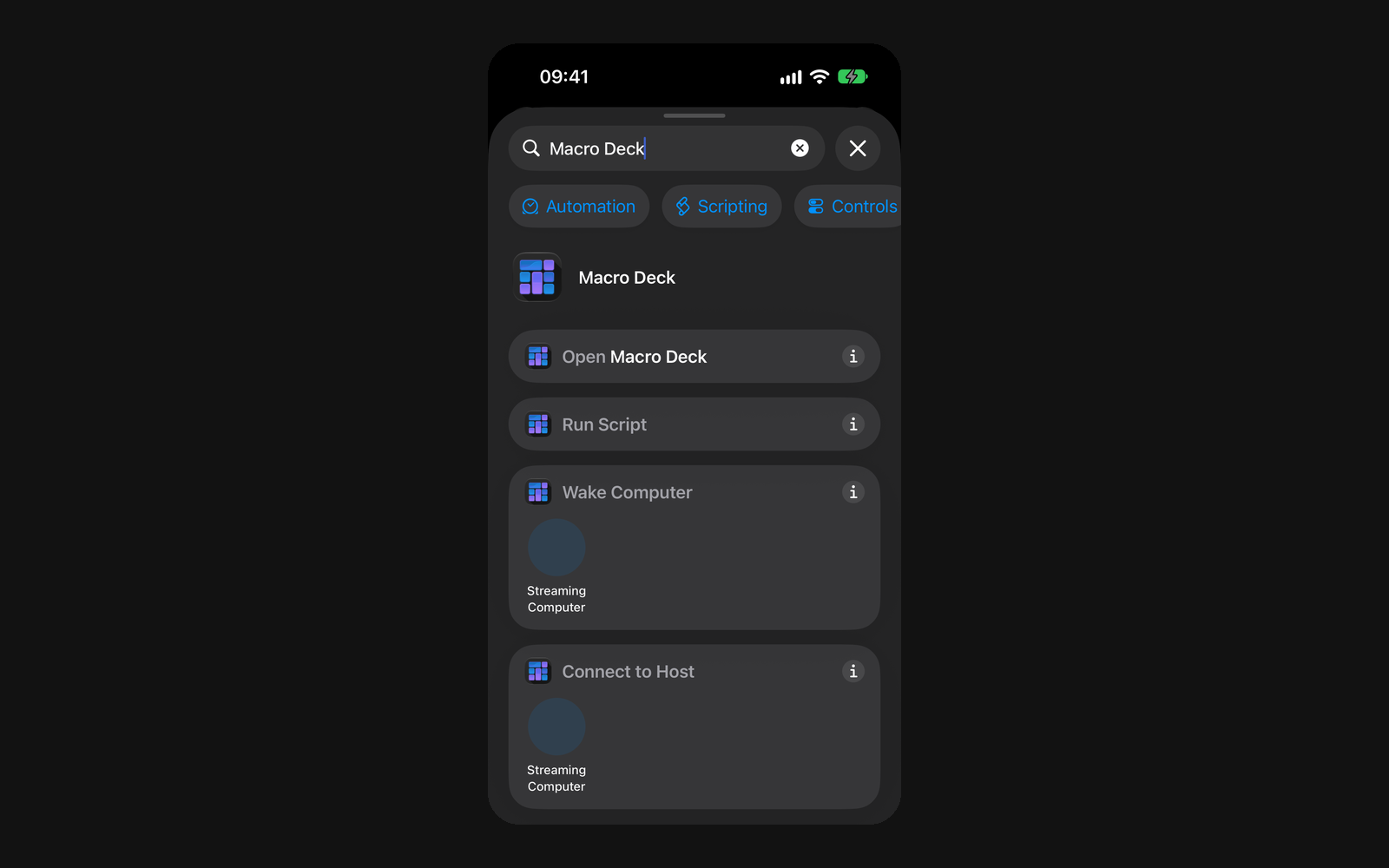
The Macro Deck Companion app for iPhone and iPad adds four actions to Apple's Shortcuts app: Open Macro Deck, Connect to Host, Wake Computer and Run Script. The last one is the interesting part. It runs one of your Macro Deck scripts on your computer without opening the app, which means anything that can start a shortcut can now start something on your desk: Siri, a Focus, a time of day, arriving somewhere, or an NFC tag. This post goes through a few setups that work well, and through the limits you should know before you build on them.
What you need
Shortcuts and Siri need iOS or iPadOS 16. Run Script needs a Companion license or a running trial, and it only runs while your iPhone is unlocked; when you start it from Siri on a locked phone, iOS asks you to unlock it first. The computer has to be reachable over the network, because scripts cannot run from Shortcuts over a USB cable. And Macro Deck has to be running on the computer, with the computer unlocked: Macro Deck does not run actions while the computer it runs on is locked, and Shortcuts then tells you so.
That last point decides which of the ideas below are useful for you, so keep it in mind. Everything the Shortcuts app does here goes through scripts, and Run Script lists every script of your saved computers that does not run on a widget. The Shortcuts and Siri page in the docs has the full reference.
Prepare your stream with Siri
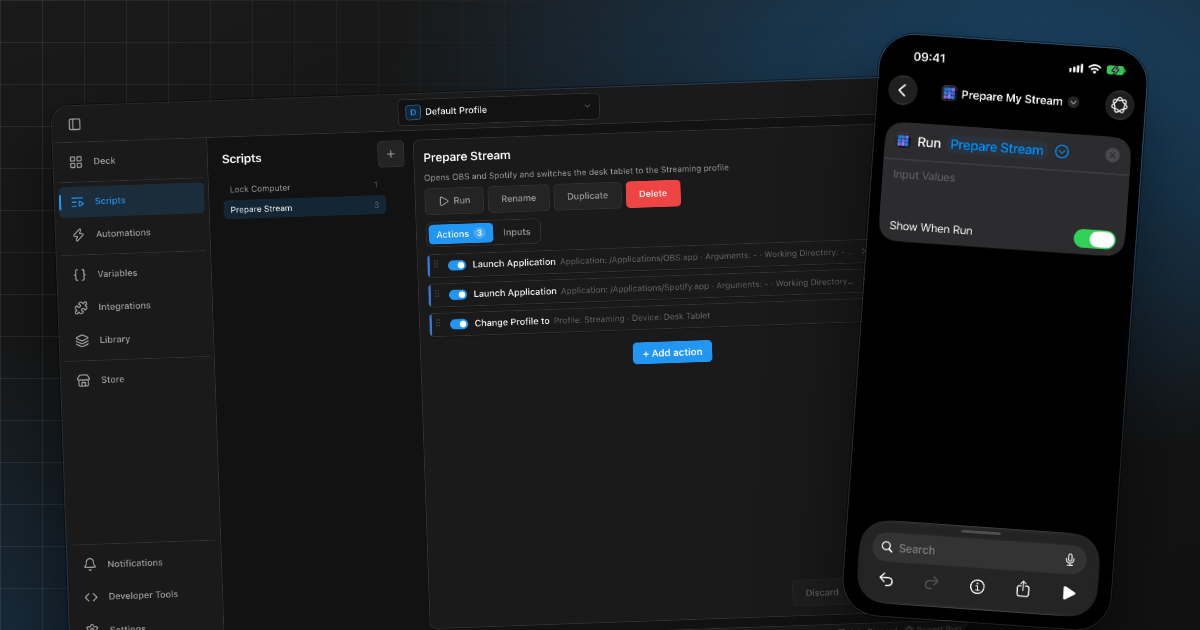
Starting a stream usually means the same handful of clicks every time. Put them into a script in Macro Deck instead. Under Scripts on the computer, create one called Prepare Stream and add the actions you would otherwise do by hand. The one below starts OBS and Spotify with Launch Application and switches the tablet on the desk to the Streaming profile with Change Profile to.
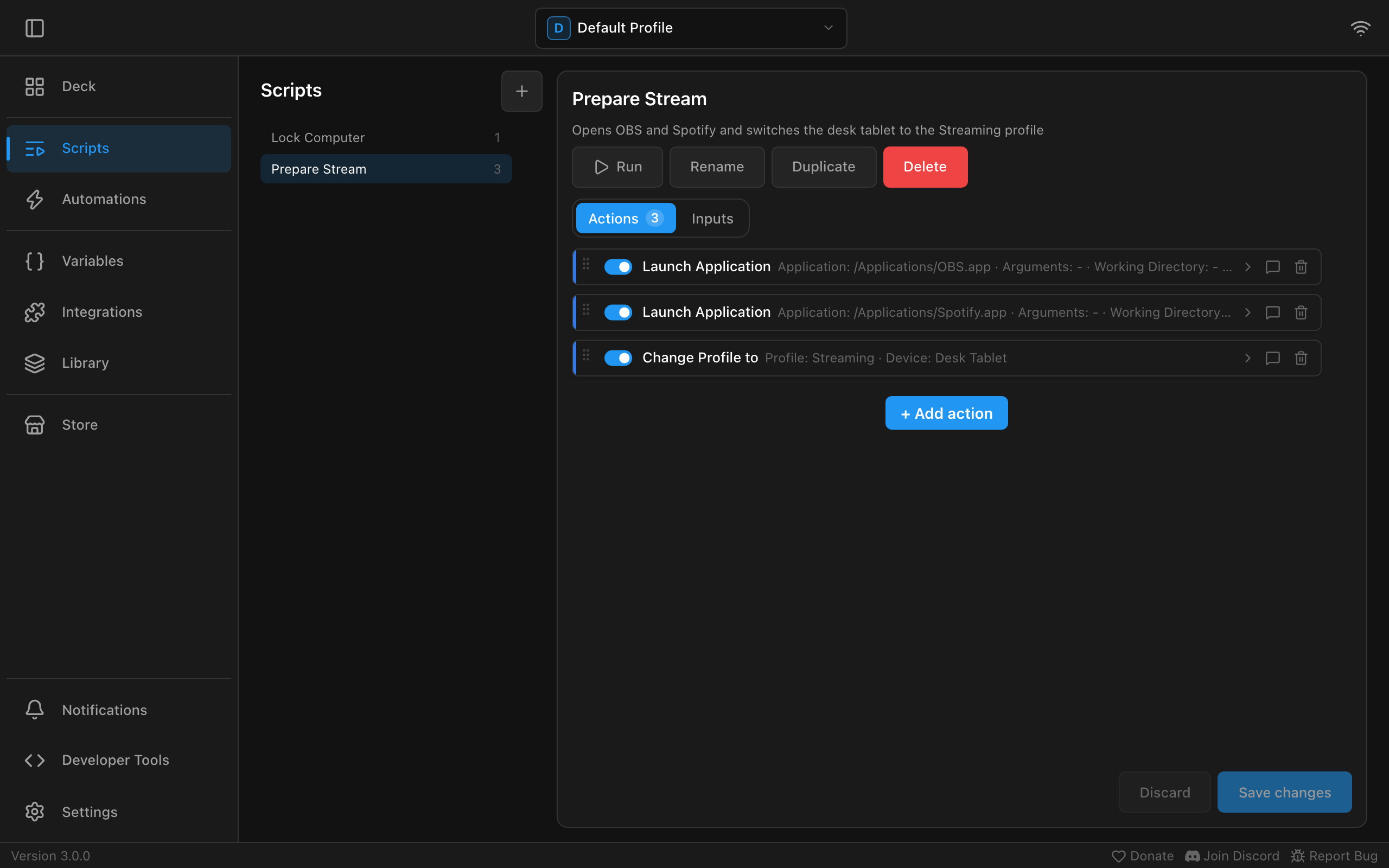
From there it grows with the integrations you use. With OBS Studio connected, Set Scene and Start Streaming pick your starting scene and go live. Home Assistant's Set Light or Activate Scene sets the room, and Spotify's Play Playlist starts the music. In Change Profile to, choose the device under Device. Left empty, it switches the device that ran the action, or every device when none did, which is rarely what you want from a script that your phone starts. A chosen device has to be connected, otherwise the action fails.
On the iPhone, open Shortcuts, create a new shortcut, search for Macro Deck and add Run Script. Tap Script and choose Prepare Stream from the list, then rename the shortcut to Prepare My Stream.
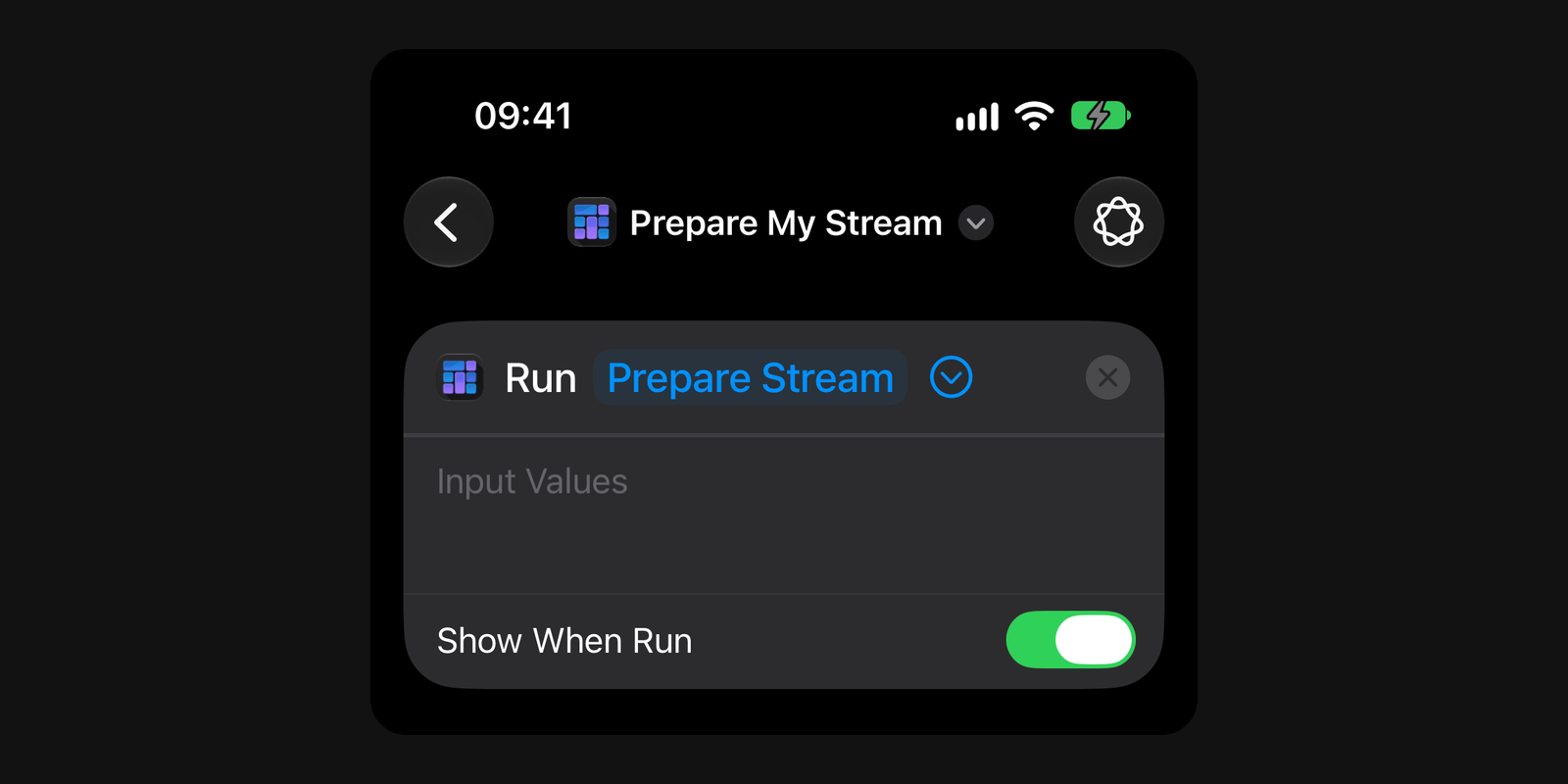
Siri runs a shortcut when you say its name, so "Hey Siri, prepare my stream" now does all of it. Shortcuts answers with "Ran Prepare Stream.", or with "Started Prepare Stream. It is still running." when the script takes longer than Shortcuts waits for.
The nice thing about this split is that the shortcut never changes. When you add a step to your stream setup later, you change the script in Macro Deck, and the shortcut, the Siri phrase and every automation that uses it pick it up. If a script takes inputs, such as the scene to start with, you can pass them in Input Values, either as a dictionary or as one name=value per line.
Lock your computer from another room
A much smaller one: you left your desk and are not sure you locked the computer. Create a script with the Lock Computer action from the System integration, add it to a shortcut called Lock My Computer, and "Hey Siri, lock my computer" does it from wherever your iPhone can reach the computer.
The limit from above works in your favour here, but it also means this is a one-way trip. Once the computer is locked, Macro Deck runs no more scripts until someone unlocks it at the computer, so there is no matching "unlock" shortcut.
Run a script on a Focus, a time or a place
Shortcuts can also start a shortcut without you asking. A Focus turning on or off, a time of day, arriving at or leaving a place: each of these can run your Macro Deck script. Where you set this up has moved between iOS versions. In iOS 27, you add the trigger inside the shortcut itself, from the Automation category in the action list, where you find entries like Time of Day, Arrive and the Focus modes you set up.
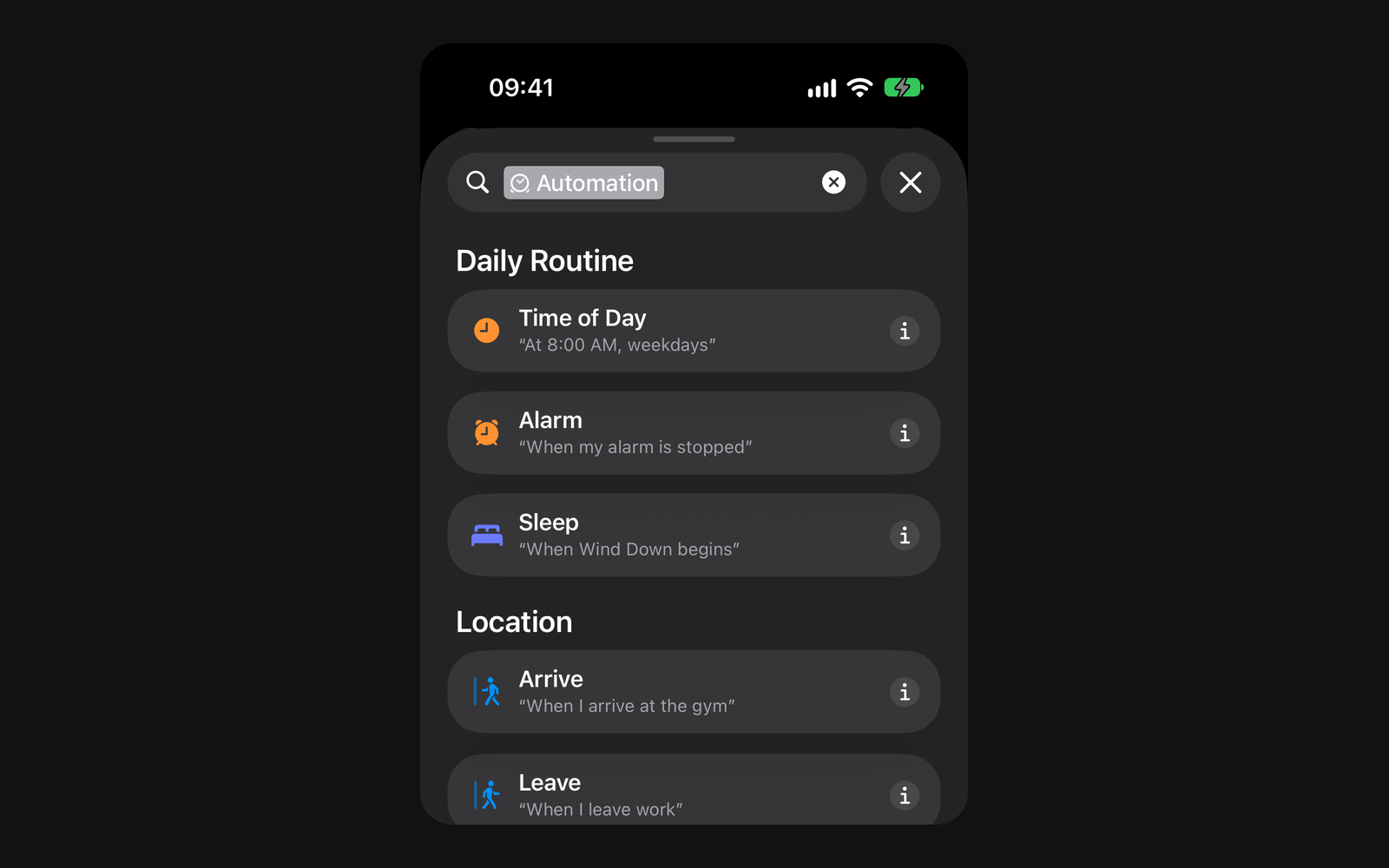
A Focus works well for switching between work and play. When your Work Focus turns on, a script can open the applications you work with and switch the deck on your desk to a work profile with Change Profile to; a second automation for when the Focus turns off puts things back. Since you usually turn on such a Focus while you are already at the computer, the computer is awake and unlocked, which is exactly when the script can run.
Arriving home is the case to be careful with. A script on Arrive only runs if the computer is on, Macro Deck is running and the computer is unlocked when you walk in, which for most people it is not. What does work is the Wake Computer action: it sends a Wake-on-LAN signal without opening the app, and waking needs no unlocked computer, because it does nothing on the computer except wake it. The computer and its network card have to support Wake-on-LAN, and the app learns the network card the first time you connect over the network. Wake the computer has the details.
Open the deck with an NFC tag
Connect to Host opens the deck of one of your saved computers, and it opens the Companion app by itself, so it needs no second action. On an iPhone, an NFC tag can be the trigger: a sticker on the desk that you tap to open the deck of the computer next to it. If you have several computers with Macro Deck, give each desk its own tag and its own Connect to Host. Siri understands this one without a shortcut of your own, too: "Connect to Streaming Computer in Macro Deck".
Macro Deck actions are ordinary Shortcuts actions, so you can put them next to anything else Shortcuts can do: set a Focus on the phone first, run the script, then show a notification. Shortcuts decides when something happens, Macro Deck decides what happens on the computer, and the script is the only place you have to maintain. The scripts widget on the Home Screen and the script control in Control Center run the same scripts with a tap, see iPhone and iPad in the docs. If you build something with it that others could copy, I would like to see it on the Macro Deck Discord.